
Summary
Julianne Kost provides 10 essential tips for efficiently using Photoshop’s painting tools, focusing on brush size, hardness, cursor options, tool switching, and advanced eraser functionalities.
She explains how to quickly adjust brush attributes via keyboard shortcuts and HUD controls, customize cursor visibility for precision, and maintain brush settings across different tools. She also covers sampling colors without tool switching, constraining strokes, fading brush effects, toggling between related tools while retaining settings, and using the eraser with history states. Additionally, Julianne highlights the unique “block” eraser mode useful for UI mockups and offers a bonus tip on managing automatic layer creation when painting on non-pixel layers.
These tips aim to improve workflow speed, precision, and control for digital painters and retouchers alike.
Key Insights
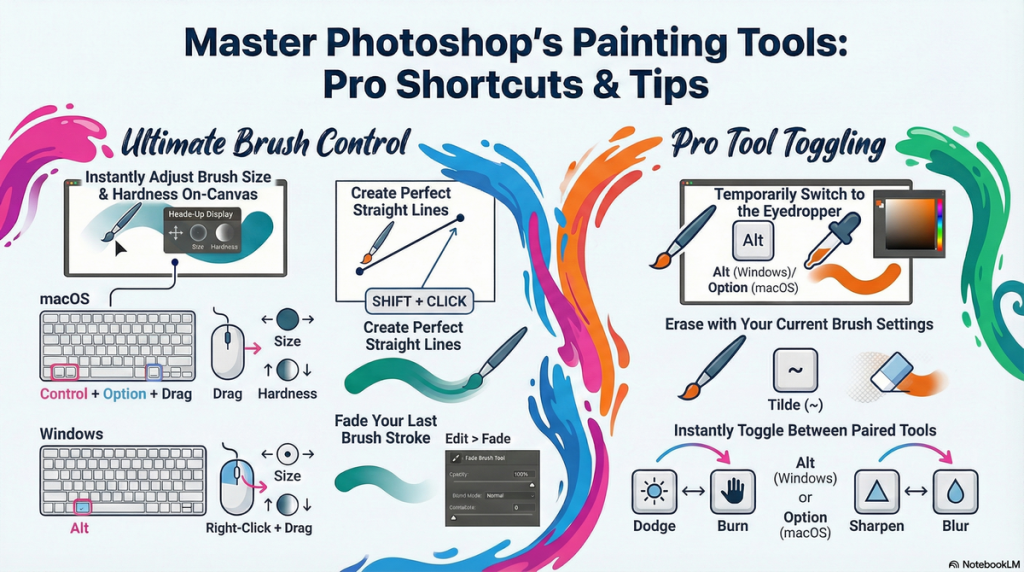
- Bracket keys adjust brush size; Shift + bracket keys adjust hardness.
- Mac and Windows have HUD shortcuts for dynamically changing brush size and hardness during painting.
- Caps Lock toggles between normal brush tip and precise crosshair cursors.
- Brush cursor options include standard, precise, full size, varying outline weights, and crosshair visibility.
- Holding the Tilde (~) key temporarily switches between brush and eraser while maintaining brush settings.
- Users can assign custom keyboard shortcuts for various painting tool functions.
- Holding Alt/Option while painting samples colors with the eyedropper without changing tools.
- Shift key constrains brush strokes to horizontal / vertical lines or connects strokes with straight lines.
- The eraser tool can erase to a previous state in the history panel, enabling undo-like functionality on specific areas.
- The “block” mode eraser erases a fixed square area regardless of zoom level, useful for UI and pixel-precise tasks.
Key Learning Points
- Mastery of keyboard shortcuts (brackets, shift, tilde, alt/option, shift) greatly enhances painting efficiency.
- Understanding cursor display options helps in precise painting and better visual feedback.
- Temporary tool toggling via tilde avoids constant switching and maintains consistent brush characteristics.
- Customizing keyboard shortcuts personalizes and speeds up the painting workflow.
- Sampling colors without changing tools using Alt/Option key maintains workflow fluidity.
- Constraining strokes with Shift improves accuracy for geometric or structured painting tasks.
- The Fade brush tool option allows post-stroke opacity and blend mode adjustments, adding flexibility.
- Switching between sharpening/blur and dodge/burn with Alt/Option is a powerful technique for retouching.
- Erasing with history states provides non-destructive editing options, crucial for complex workflows.
- Disabling auto layer creation when painting on non-pixel layers prevents accidental edits and enforces better layer management.
Conclusion
Julianne Kost’s tips always offer Photoshop users practical and powerful techniques to optimize their painting workflow.
By leveraging keyboard shortcuts, cursor customizations, and advanced eraser functions, artists and editors can work more quickly and precisely. The tutorial also emphasizes maintaining consistent brush settings across tools and using history states for non-destructive edits, which are invaluable for professional-level work.
Overall, these insights encourage a more deliberate, efficient, and controlled approach to digital painting in Photoshop, enabling users to focus more on creativity and less on tool management.