
The following offers a guide to utilizing Curves image editing software such as Adobe, ON 1, Liminar and provides valuable background reading to our own Lumatic Labs Converter.
They explain how to manipulate the tonal range, specifically by raising or lowering points on a graph to adjust shadows, midtones, and highlights. Beyond simple exposure corrections, the texts describe advanced techniques for color grading, such as matching skin tones, creating a matte look, or achieving a filmic aesthetic.
Ultimately, mastering Curves allows for non-destructive, precise control over an image’s mood, contrast, and color balance.
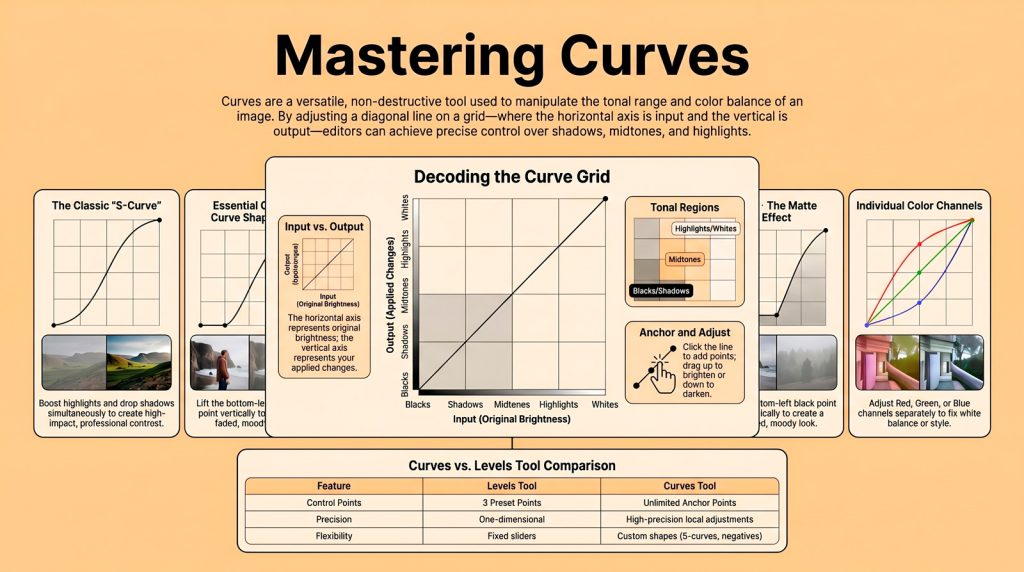
The Curves tool is often viewed as the most intimidating feature in digital Photo Editing, yet it remains the most powerful way to sculpt an image’s life and mood from a strategic perspective. While the grid may look complex at first glance, it simply maps input levels to output levels across the entire Tonal Range. “Despite the sometimes confusing first impression, using curves is really quite simple.” Once you understand the grid, you gain total control over the image’s atmosphere.
One favorite professional secret for modern editors is lifting the Black Point to create a moody “matte” look. By grabbing the bottom-left point of the grid and pulling it vertically, you raise the darkest values to a soft, faded gray. This technique is perfect for late-afternoon shots or artificial lighting, but use caution: avoid applying this to bright daylight scenes lacking shadows, as it can mess up the exposure instead of adding professional depth.
While most editors use a standard S-curve to add Contrast, the Reverse-S curve is a vital tool for high-dynamic-range scenes. In backlit subjects or harsh sunlight, an S-curve often moves tones the “wrong way”—further darkening deep shadows in stones and blowing out sky textures. By pulling highlights down and shadows up, the Reverse-S restores the blue in the sky and essential detail in the foreground rocks, balancing the scene perfectly.
A common struggle especially in Photoshop is changing brightness without distorting your Color Correction. By switching your layer blend mode to Luminosity, you ensure the curve only affects tonality. This prevents colors from becoming “washed out” or shifting hues, which often happens when lightening in HSL or HSV spaces. This technique is critical for maintaining color harmony, keeping elements like green grass looking natural during a brightness boost.
For surgical precision, navigate the dropdown menu to select individual Red, Green, or Blue channels. Analytical grading is essential for fixing skin tones because our eyes can play tricks on us in difficult lighting. This non-destructive approach allows for high-level retouching—like brightening eyes or hair—without shifting the entire frame’s color balance.
At Lumatic Labs, our Image Sculptor philosophy is about defining the photo through your tools rather than letting the tools define the image. These techniques give you the means to effortlessly manipulate values and breathe new life into your digital creations.
Now that you know how to bend light to your will, will you use curves to reflect reality, or to create a new one?