
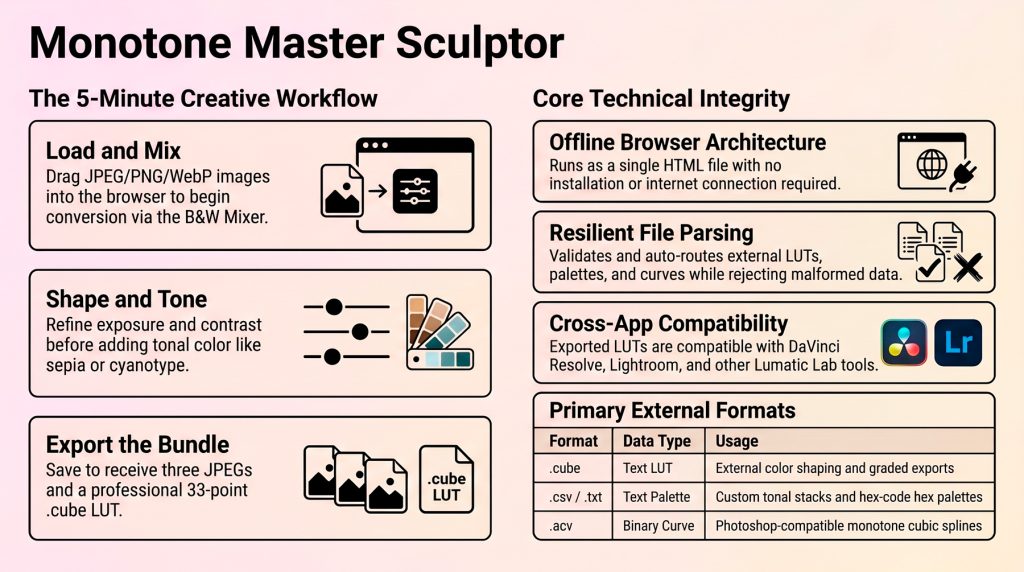
The Monotone Master Sculptor has a 4-stage workflow that can be summarised as Load, Build, Sculpt, and Export. Here is how you use each stage to edit your photos:
Stage 1: Load (Input)
- Drag and drop your photo (JPG, PNG, or WEBP) into the “Load Photo” stage.
- The browser ingests your image and creates a “Pristine Buffer”, an untouched, immutable baseline of your photo data that prevents pixel degradation and ghosting.
- Wait for the brief turquoise “Generating” status to finish.
Stage 2: Build the Foundation
- Apply a Base Structure (.CUBE file) to establish your primary tonal structure.
- This acts as your initial film stock, providing the foundational black-and-white “DNA” and light distribution before further sculpting.
Stage 3: Sculpt theTones
This stage involves manipulating light, contrast, and chemical tinting to get “The Look”:
- Refine Colours (Bay A): Use these sliders like physical tinted glasses to control how original colours convert to grayscale. For example, lowering the blue slider will turn a bright sky into a dramatic dark grey, while raising red can brighten skin tones.
- Zone Auditor (Bay B) – Based on the Ansel Adams Zone System, this provides precise lighting control. You can anchor deep blacks in the Shadows (Zones 0-2), adjust main details in the Mid-Grays (Zones 4-6), and squeeze Highlights (Zones 8-10) without affecting other areas of the image.
- Chromatic Injection (Tonal Mapping): Drag a .GRD or .CSV file into the Tonal Mapping panel to assign different colours to different brightness levels, giving your image 3D depth and chromatic contrast.
- Final Tuning (Bay C): This acts as your mixing desk. Use the Mapping Wash slider to adjust the strength of your tonal mapping (professionals usually set this between 40-60%) and apply a unified global colour wash or Neutraliser. You can also experiment with Blend Modes (like Overlay or Multiply) to change how the light and colours mathematically interact.
Stage 4: Export (Bake)
- Add Final Touches: Go to Bay D and apply a subtle Vignette Burn (10-20%) to darken the edges and draw the viewer’s eye to the centre of the image.
- Bake Quad-Tier Portfolio: Name your masterpiece and click “Bake”.
- The engine will simultaneously generate four professional assets: a full-resolution Master JPEG, a 1200px version for social media, a 200px archival thumbnail, and a reusable 33³ 3D LUT (.CUBE) containing your custom tonal recipe for use in other professional editing suites
Full documentation is available here.