
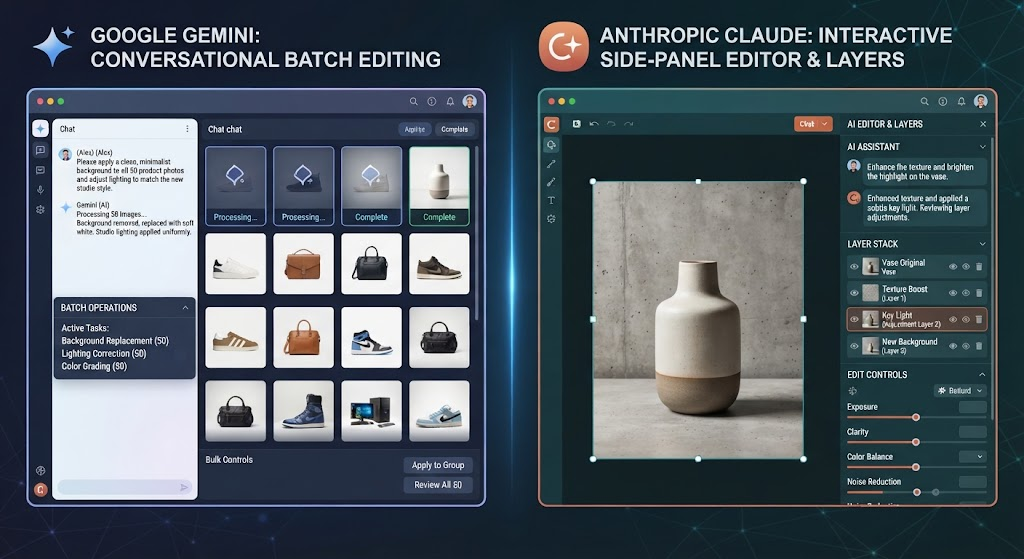
Workflow 1: Setting Up & Batch Editing in Google Gemini
Gemini’s Adobe integration focuses on high-speed conversational orchestration across Photoshop, Lightroom, Adobe Express, and Firefly.
Step 1: Initial Connection & Account Linking
- Open Google Gemini (
gemini.google.com) on web, desktop, or mobile. - Navigate to Settings or Personal Intelligence in your account menu.
- Locate Adobe under the Connected Apps list and toggle it ON.
- Sign in with your Adobe account (a free Adobe ID is supported).
- Ensure Keep Activity (formerly Gemini Apps Activity) is enabled in Gemini settings, as Connected Apps require active history tracking.
Step 2: Running a Batch Edit
- Open a new chat in Gemini and type @Adobe to invoke the connector.
- Upload your image batch (e.g., 5–15 product photos, event headshots, or real estate images).
- Enter a prompt that clearly defines what to adjust, what to preserve, and the target output.
💡 Sample Batch Prompt: “”
Step 3: Refinement & Channel Adaptation
- Iterate via Chat: If the exposure or crop needs tweaking, submit targeted follow-up prompts (e.g., “@Adobe make the background 10% brighter across all images” or “Crop these for Instagram Stories at a 9:16 ratio”).
- Export: Download the processed batch directly or sync the outputs to your Adobe Creative Cloud Libraries.
Workflow 2: Setting Up & Batch Editing in Anthropic Claude
Claude’s Adobe plugin provides access to over 80 Adobe tools (including Acrobat, Lightroom, Photoshop, and Express) alongside interactive side-panel editors for hands-on fine-tuning.
Step 1: Installing the Plugin & Connector
- Open Claude (
claude.aior desktop/mobile app). - Click Customize in the left sidebar and select the Plugins tab.
- Search for Adobe, click Install / Add, then switch to the Connectors tab on the same page and select Connect.
- Sign in with your Adobe account (signing in unlocks higher usage limits, asset storage, and multi-tool workflows).
- Pro Tip: Set the connected Adobe tools to “Always allow” in permissions so Claude doesn’t ask for approval on every single batch operation.
Step 2: Executing Batch Photo Adjustments & Presets
- In a new conversation, type /Adobe to launch the Adobe skill.
- Drag and drop your image collection into the chat thread.
- Specify batch adjustments, such as applying Lightroom presets or background removal.
💡 Sample Batch Prompt: “/Adobe apply a clean editorial Lightroom preset across these 8 portrait headshots. Balance the exposure, unblur any soft focus, and smooth background shadows while keeping skin tones natural.”
Step 3: Fine-Tuning in Interactive Editors
- Express Layer-Based Editor: If converting batch photos into promotional graphics or social banners, open the interactive side panel to adjust typography, fonts, colors, or individual image elements without re-prompting or regenerating the whole layout.
- PDF Catalog Assembly: If compiling the edited images into a presentation or catalog, use the integrated Acrobat PDF Editor in Claude’s side panel to reorder pages, add annotations, or export as a polished document.
Platform Comparison for Batch Photo Editing
| Operational Aspect | Google Gemini + Adobe | Anthropic Claude + Adobe |
|---|---|---|
| Primary Interaction | Conversational chat prompting | Conversational chat + interactive side-panel editors |
| Core Photo Capabilities | Batch lighting, color balance, cropping, Express template formatting | Batch lighting, Lightroom preset application, background removal, Express layer editing |
| Fine-Tuning Method | Sequential text prompts | Direct hands-on element selection & dynamic sliders |
| Best Used For | Rapid social media variations, high-velocity e-commerce batches | Multi-asset marketing campaigns combining photos, designs, and PDF assets |
Key Tips for Best Results
- Name What Must Stay Unchanged: Generative models can alter unintended details if unconstrained. Always specify parameters like “keep original skin tones” or “preserve exact brand colors”.
- One Refinement Step at a Time: Make single, targeted adjustments in follow-up prompts rather than combining multiple complex edits in one turn.
- Know When to Transition to Desktop: Use chat-based agents for quick first drafts, volume batching, and routine cleanup. Switch to standalone Photoshop or Lightroom desktop apps for precise channel masking, pixel-level retouching, or hero marketing campaigns.