
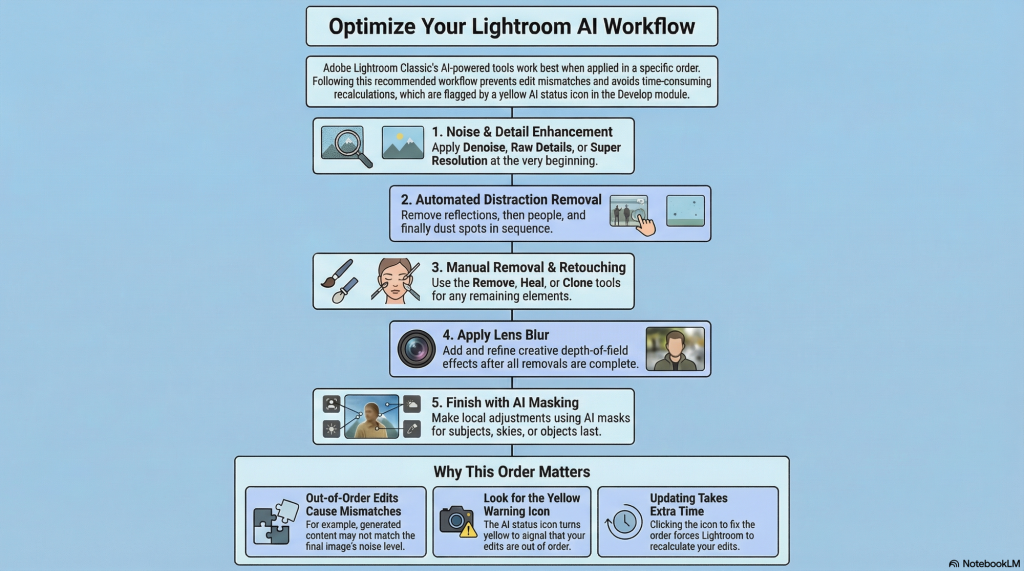
In her tutorial, Julieanne Kost introduces the AI status icon in Lightroom Classic, a feature designed to alert photographers when edits are applied in a suboptimal sequence.
To avoid the time-consuming process of manually updating calculations, she recommends a specific workflow order starting with Denoise, followed by distraction removal and Generative AI tools. This structured approach ensures that the software correctly matches noise profiles and masking boundaries as the image is altered.
After addressing structural changes like Lens Blur and cropping, users can proceed to global adjustments and finally AI-assisted masking. Following this protocol prevents visual mismatches and ensures the AI tools interpret the most accurate version of the image data. Using these professional guidelines streamlines the post-processing phase and maintains image integrity across complex edits.
1. Denoise / Raw Details / Super Resolution
2. Automated Distraction Removal (in this order: Reflections, then People, then Dust)
3. Manual Removal Tools (Heal, Clone, Generative Remove)
4. Lens Blur
5. AI Masking (Subject, Sky, etc.)
In Summary – Lightroom’s AI tools have an optimal sequence for application. Follow this order to ensure each tool builds on accurate image data.