
Where you see [some words like this] , it indicates a place holder where you may type the parameters of the effect you are trying to create. IF you change nothing, they will run to completion using the current parameters.
General Batch Jobs
@Adobe apply [caracteristics such as consistent lighting, exposure, and color balance] across all [number of] uploaded product photos. Keep the fabric colors exact, apply a clean 1:1 e-commerce crop, and remove background distractions.
@Adobe apply a clean editorial Lightroom preset across these [8 portrait headshots]. Balance the exposure, unblur any soft focus, and smooth background shadows while keeping skin tones natural.
Landscape Batch Jobs
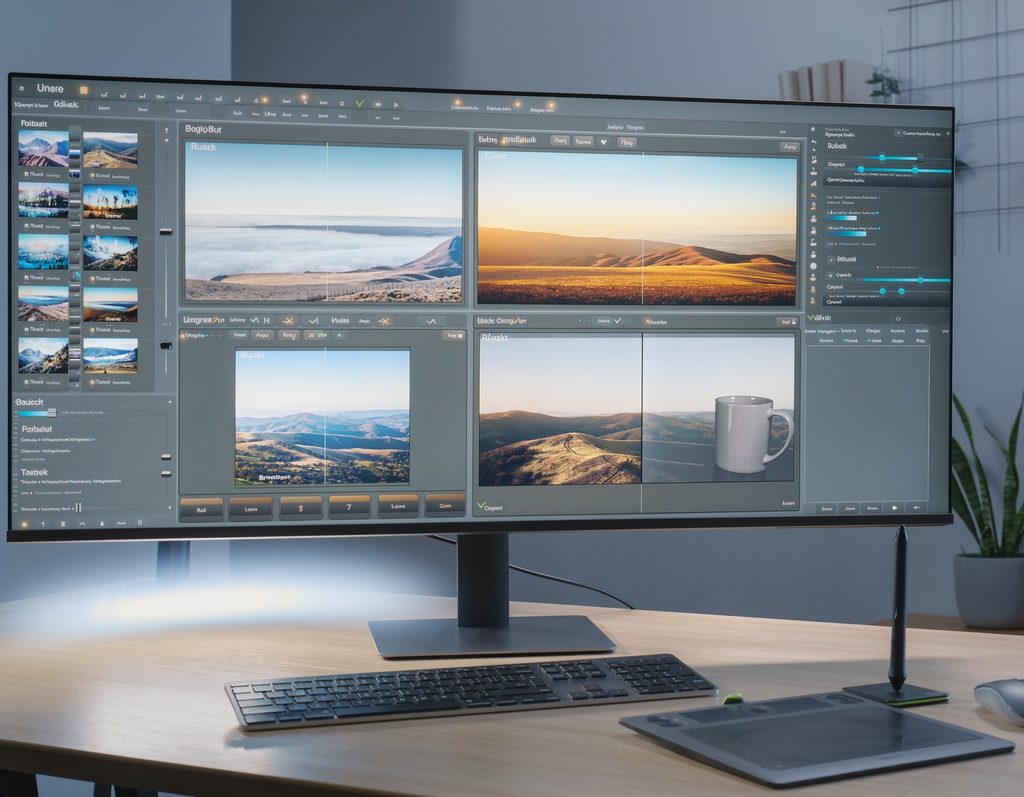
Golden Hour
@Adobe apply consistent golden hour enhancements across these [X] landscape photos. Balance the exposure by lifting shadow detail in the foreground terrain while preserving sky highlights. Warm the overall color temperature slightly, enhance rich golden and amber tones, and maintain natural greens in trees and foliage. Do not oversaturate or alter original horizon lines.
Mountain & Alpine Scenery
@Adobe optimize exposure and dynamic range across this batch of mountain photos. Auto-straighten horizon lines, apply subtle dehaze to distant peaks, and recover shadow detail in mountain valleys. Ensure snow-capped peaks remain crisp without blowing out highlights, and preserve original rock textures and sky tones across all images.
Coastal, Ocean & Water Scenery
@Adobe process these woodland photos with a moody, editorial forest preset. Neutralize harsh color casts, deepen foliage greens and earthy moss tones, and slightly lift midtone shadows to reveal bark and leaf texture. Enhance atmospheric fog/mist where present while keeping trunk edges sharp and natural.
Astrophotography & Night Landscapes
@Adobe optimize this batch of night landscape shots. Apply AI noise reduction to night skies, sharpen star details, and boost contrast in the Milky Way band. Gently brighten foreground land masses while keeping sky background deep black rather than navy/blue. Preserve natural colour accuracy on stars.
Keys to success:
Name What Must Stay Unchanged: Generative models can alter unintended details if unconstrained. Always specify parameters like “keep original skin tones” or “preserve exact brand colours”
One Refinement Step at a Time: Make single, targeted adjustments in follow-up prompts rather than combining multiple complex edits in one turn
Know When to Transition to Desktop: Use chat-based agents for quick first drafts, volume batching, and routine cleanup. Switch to standalone Photoshop or Lightroom desktop apps for precise channel masking, pixel-level retouching.
Best Practices for Landscape Batch Editing in AI Chats
- State What to Preserve Explicitly: Generative tools can inadvertently shift colors or alter landforms if unconstrained. Explicitly state rules like “do not alter mountain outlines” or “keep foliage colors natural.”
- Preset Integration in Claude: When using Claude, you can explicitly ask the connector to apply specific Lightroom Presets across your batch (e.g., “/Adobe apply an editorial landscape preset across these 10 RAW files”).
- Non-Destructive DNG Exports: When using Lightroom Prompt to Edit capabilities, edits are generated as separate, non-destructive DNG files stacked alongside your originals.
- Monitor Credit Consumption: Advanced batch operations (such as multi-frame sky replacements or upscaling via partner models like Nano Banana 2 or Topaz) draw from your monthly Generative Credit pool.