
Introduction and Context
Anthony Morganti introduces his video by highlighting the recent addition of an AI assistant feature in Skylum Software’s Luminar Neo. He briefly mentions that he has created a free mini-course on Luminar Neo, which viewers can download from his website, with a link provided in the video description. Anthony also references the mobile version of Luminar Neo, called Luminar Mobile, which won the Google Award for the best app of 2025. He invites viewers to comment if they want more videos focused on Luminar Mobile.
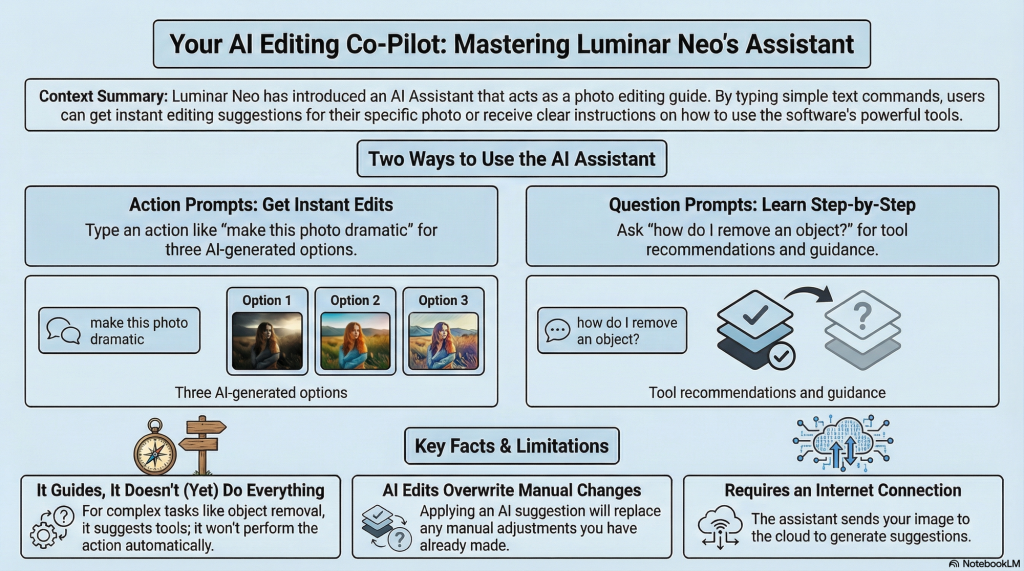
Our view It’s an Education Guide, Not a “Doer” – For complex tasks, the AI Assistant’s primary role is guidance, not automated execution of the edit. Users MUST UNDERSTAND this is they are not to be disappointed.
To activate the AI assistant, users simply click on the circle icon, which opens a floating window. This window can be resized for easier viewing. The assistant operates using two types of prompts “Action prompts” for enhancements and “How-to prompts” for step-by-step instructions. Action prompts can directly boost colors, adjust white balance, and apply toning styles whereas How-to prompts only guide you toward tools for sky replacement or background replacement. This makes the Assistant a learning tool, not a production shortcut for complex edits. Use “How-to” prompts to master tools, but don’t expect “Action” prompts to replace manual generative work.
Demonstration: Using the AI Assistant for Automatic Edits
In his video, Anthony demonstrates using the AI assistant on a sample image. When he clicks “Enhance this photo,” the AI assistant processes the image by sending it to the cloud, requiring an active internet connection. This cloud-based processing is similar to generative features found in Photoshop, where three variations are produced.
Below the thumbnails, detailed explanations describe the adjustments made in each edit. For example, one edit might boost highlights, temperature, and shadows to increase contrast and exposure, enhancing the image’s mood and depth, while other edits adjust vibrancy or apply landscape effects.
Anthony notes that switching between variations removes the previously applied edit before applying the new one, ensuring only one AI-generated edit is active at a time.
Users can easily toggle between these variations to preview which style suits their image best. If none of the AI-generated options are satisfactory, users can revert to previous edits by scrolling back up within the assistant interface, as the earlier color edit remains accessible.
Benefits of the AI Assistant for Beginners and Advanced Users
Anthony highlights the value of the AI assistant, especially for those new to photo editing. Rather than simply accepting the AI’s edits as final, beginners can study the adjustments made—visible in the editing panel—to learn what changes were applied. This transparency helps users understand editing techniques and gain confidence.
The tool can also serve more experienced users who feel creatively stuck or bored with their usual editing styles. The AI assistant can generate fresh ideas or suggest directions they might not have considered, potentially rejuvenating their workflow.
Additionally, once an AI-generated edit is applied, users can save it as a preset for quick reuse on other images, facilitating efficiency and consistency in editing.
How-To Queries: Asking the AI Assistant for Guidance
The AI assistant also functions as an interactive tutorial. Users can type prompts starting with “How to” to receive detailed instructions on achieving specific effects. Anthony demonstrates this by typing “How to make this image look more moody and cinematic.”
Instead of performing the edit, the assistant analyzes the image and provides a multi-step guide recommending specific filters and adjustments. For example, it suggests using the Sky AI filter to replace the sky with a darker, dramatic one, adjusting the Develop module settings, tweaking color balance, and adding a vignette to create a moody atmosphere.
What’s particularly useful is that the AI assistant offers clickable links within the instructions that open the relevant filter panels directly, allowing users to apply the adjustments easily and experiment with the suggested settings.
Anthony emphasizes that this instructional feature is a great way to learn new editing styles without searching extensive tutorials online.
Important Considerations and Limitations
Anthony points out several important details and limitations of the AI assistant:
- Internet Connection Required: Because the AI assistant sends images to the cloud for processing, an active internet connection is mandatory.
- Original Raw File Processing: When using the AI assistant to edit an image, it always works on the original raw file, disregarding any previous manual edits. This means that applying an AI-generated edit will overwrite and replace any prior manual adjustments.
- Undoing AI Edits: If users want to revert to their manual edits after applying AI-generated edits, they must use the undo command (Command + Z on Mac or Control + Z on PC). Multiple undo steps may be necessary to cycle back through the AI variations to restore the original edits.
- No Generative Remove Tool Support: The AI assistant cannot perform certain generative tasks like removing sensor spots, distractions, or unwanted objects using the Remove tool. Users must continue to perform such edits manually.
Anthony mentions that Skylum plans to improve and expand the AI assistant’s capabilities in future updates.
Additional Notes on Accessibility and Use in Presets Panel
The AI assistant’s functionality is identical whether accessed from the Edit panel or the Preset section. It is not designed for creating or managing presets but purely for editing and guidance.
Users can instruct the assistant to perform actions like enhancing the photo, converting it to black and white, enhancing the sky, or asking how to achieve certain looks. The assistant’s responses and capabilities remain consistent across both interface locations.
Closing Remarks
Anthony concludes by reiterating the availability of his free Luminar Neo mini-course.
Summary of Core Concepts and Keywords
- Luminar Neo AI Assistant: New AI-powered editing assistant integrated within Luminar Neo.
- Dual Access Points: Available in both Edit panel and Preset section.
- Action vs. Question Prompts: Automatic edits vs. step-by-step instructional guidance.
- Cloud Processing: Requires internet, edits raw files, produces three variations.
- Edit Transparency: Descriptions of changes help users learn editing techniques.
- Undo Feature: Necessary to revert AI edits to previous manual edits.
- Generative Limitations: Does not support object removal or generative merge functions.
- Preset Creation: AI edits can be saved as presets.
- Educational Tool: Assists beginners and inspires experienced users.
This detailed overview captures the key functionalities, demonstrations, benefits, and limitations of the AI assistant in Luminar Neo as presented in the video by Anthony Morganti. That combined with our own input offers a comprehensive guide for users aiming to leverage this new feature effectively.