
Is a specialized tool designed to convert Adobe Photoshop gradient files (.grd) or specifically formatted .txt and .csv files into standardized .cube LUTs.
Protect YOUR preset library; don’t let it die with a canceled subscription.
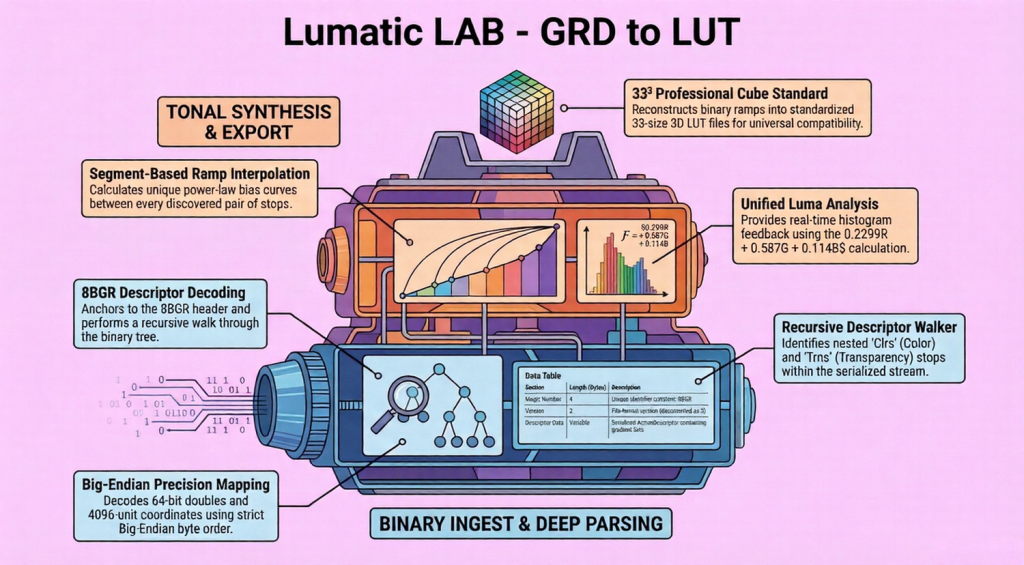
Beyond conversion, the software incorporates a Tonal Analysis Panel with real-time histograms and dynamic exposure controls to ensure visual integrity during the rendering process.
QUICK USER GUIDE :: for the gradient file to lut convertor
1. What This Tool Does
GRD Architect allows you to:
- Open an image (such as a photo)
- Load a Photoshop gradient file (.GRD or specially formatted CSV or TXT file)
- Preview how each gradient affects the image
- Adjust brightness and strength of the effect
- Save the preview as a JPEG image at 1200px for immediate use in Social media, @200 px for archival purposes and as a 33^3 LUT
You do not need to install anything. The tool runs directly inside a web browser.
2. Understanding the Screen Layout
The screen is divided into three areas.
| Area | Location | Purpose |
|---|---|---|
| File Panel | Left side | Load your image and gradient file |
| Preview Area | Center | Shows the image with the selected gradient |
| Controls Panel | Right side | Adjust brightness and intensity |
3. Step-by-Step Workflow
Step 1 — Load an Image
- Click “Drop Image” on the left panel.
- Select an image file from your computer. – Supported examples: JPG or PNG
- Once loaded, the image will appear in the center preview area.
Step 2 — Load a Gradient File
- Click “Drop .GRD File”.
- Choose a Photoshop gradient file (.GRD).
The tool reads the gradients and lists them in the Gradient Stack panel. Each item in the list represents one gradient inside the file.
Step 3 — Choose a Gradient
Click a gradient name in the Gradient Stack – The preview image will immediately update – you can click different gradients to compare them.
4. Adjusting the Image
Exposure (Brightness)
The Exposure slider controls how bright the image appears.
- 1.00 = original brightness
- Higher values = brighter image and so Lower values = darker image
Use this to balance the overall tone after applying a gradient.
Intensity (Effect Strength)
The Intensity slider controls how strongly the gradient affects the image.
| Value | Effect |
|---|---|
| 0.0 | No gradient applied |
| 0.5 | Partial effect |
| 1.0 | Full gradient effect |
This is useful for subtle colour grading.
5. Histogram (Optional Visual Aid)
The small graph above the sliders is a histogram, it shows how brightness values are distributed in the image. You can treat it simply as a visual indicator of brightness distribution. No action is required to use the tool
6. Removing Gradients
If you want to clear the gradient list – Click “Clear All” in the Gradient Stack panel. This removes all loaded gradients from the session.
7. Exporting the Result
When you are happy with the preview:
- Click “Save .JPG” at the bottom of the right panel.
- The browser downloads the processed image sized at 1200 px for immediate social media use and 200 px for archival purposes
The files will be saved as: in your browser default download location.
archive_preview_1200.jpg
archive_preview_200.jpg
archive_preview_33.cube
8. Typical Workflow Example
| Step | Action |
|---|---|
| 1 | Load a photo |
| 2 | Load a GRD gradient file |
| 3 | Click gradients to preview them |
| 4 | Adjust Exposure if needed |
| 5 | Adjust Intensity for effect strength |
| 6 | Save the image as JPG & .CUBE |
9. Basic Requirements
| Requirement | Reason |
|---|---|
| Modern web browser | Runs the application |
| Screen resolution around 1920px wide | Interface layout is designed for wide screens |
| Photoshop GRD TXT or CSV gradient files | Source of gradient presets |
10. Tips for Beginners
- Start with Intensity around 0.6–0.8 for natural results.
- Adjust Exposure last, after choosing a gradient.
- Try several gradients quickly to find the best match.
11. Troubleshooting
| Problem | Possible Cause | Solution |
|---|---|---|
| Image not showing | Image not loaded | Load an image first |
| No gradients listed | GRD file not read | Load a valid Photoshop .GRD file |
| Save button disabled | No gradients loaded | Load a gradient file |
12. What This Tool Does NOT Do
- It does not modify your original image file
- It does not save gradients
- It only exports preview JPEG images
Your original files remain unchanged.
UPDATED NOTES
The Gradient to LUT Generator stands out as a powerful, user-friendly tool for creating precise and consistent color grading LUTs with professional fidelity. The CSV, .info and .cube formats are engineered for direct database ingestion and cross-app compatibility between the COLOR ARCHITECT and GRD ARCHITECT.
Our current engine parses all stops found in the binary. If it finds two identical colors, it creates a “Flat Map” which would normally result in a solid block of color. The Refinement: We have added a Flat-Map Detector. If the s/w detects a gradient where all stops are the same, it will automatically “lift” the highlight stop to Pure White. This ensures that even “flat” monotones are converted into the professional 2-stop ramps.
Its design philosophy prioritizes predictability and ease of use, making it ideal for both novices and seasoned professionals aiming to enhance their visual storytelling through color.
A Txt Example File structure is available here (TXT) and for (CSV) the format is :
| Group name | Optional |
| Gradient name | Used to form the name of created images and lut. |
| Duotones | Require Colours in columns 1 and 5 |
| Tritones | Require Colours in columns 1, 3 and 5 |
| Quintones | Require Colours in columns 1, 3, 4 and 5 |
| To complete the spectral chain for maximum tonal smoothness | Require Colours in columns 1, 3, 4, 5, 6 and 7 |
| Quad Tones WILL NOT BE CREATED | As recognition issues are created in the software. |
All palette files are processed using a unified Luma calculation to ensure colors are mapped to the correct tonal anchors (Shadows, Midtones, Highlights) regardless of their order in the source file.
Both the TXT and CSV structures must be strictly adhered to.
Lumatic Lab: Tonal Data Standards
1. The Padded CSV Structure (3,5 & 7 Stop)
The CSV format is engineered for direct database ingestion and cross-app compatibility between the COLOR ARCHITECT and GRD ARCHITECT.
- Dummy Padding: Every row begins with a
" "(empty space) dummy column to satisfy legacy database offsets. - Identity Column: The second column contains the “Master Identity” (Palette Name).
- Hex Columns: Subsequent columns contain 6-digit Hexadecimal strings (without the ‘#’ prefix).
- Stop Logic:
- 3-Stop (Tri-tone): Uses 3 columns. Column 3, 5 & 7 Mapped to a high-fidelity spectral ramp.
- 5-Stop (Quintone): Contains 5 columns. Column 3, 4, 5, 6 & 7 Mapped to a high-fidelity spectral ramp.
- 7-Stop (MAX/Bridge): Contains 7 columns. Fills all available tonal slots.
Example Makeup (3 & 7-Stop CSV):
Using ‘Bridge Palette as the “Master Identity”
" ","Bridge Palette", ,825429, ,A07C48, ,
" ","Bridge Palette","140900","463A0A","825429","74777E","A07C48","A5AFBB","DCE6F1".
This table outlines the technical strengths and limitations of the supported upload formats.
| Format | Category | Technical Strengths | Limitations | User Actions Required |
| .CUBE | Look-Up Table (3D) | Professional-grade color science; captures complex shifts in hue, saturation, and contrast simultaneously. | Larger data overhead; cannot be edited manually as plain text easily. | Drop into sidebar; use “Map Intensity” to blend the style. |
| .GRD | Binary Blueprint | Original Photoshop fidelity; supports complex multi-stop gradients and opacity masks. | Proprietary binary format; prone to “shorthand” errors in external interpreters. | Drop into sidebar; the engine surgically extracts RGB stops. |
| .CSV | Padded Data | Simple, high-speed ingestion; compatible with spreadsheet exports and database standards. | Limited to the color columns defined; no metadata storage for specific stop positions. | Drop into sidebar; ensures hex values are mapped to the correct columns. |
| .INFO | Plain-Text Manifest | Human-readable; bypasses Windows 11 security flags; easy to edit in any text editor. | Requires strict formatting (1. Name: #Hex) to parse correctly. |