
The friction of “blind” LUT application ends here. Committing to color transforms without validation is a technical gamble that disrupts professional pipelines. The LUT / CSV Evaluator provides the instant, offline environment needed to verify looks before they reach your workflow.
The LumaticLAB LUT/CSV Evaluator is another of the small browser-based, offline software utilities. It is designed to preview and verify 3D LUTs and Lumatic .csv palettes against a default ‘Test Card’ or digital image.
The LumaticLAB LUT/CSV Evaluator eliminates the disconnect between static brand style guides and dynamic video or photo campaigns. By extracting high-precision color data from Adobe Color Swatch (.aco) files, it acts as a specialized [Grading Engine] to transform swatches into industry-standard 3D Lookup Tables (LUTs).
Instead of producing the historically flat and muddy overlays of the past, this tool utilizes sophisticated luminosity mapping to provide true, brand-accurate color filtering in major editors. Ultimately, it allows companies to maintain cross-media consistency across all platforms—from a high-end Premiere commercial to a graded Photoshop social media graphic
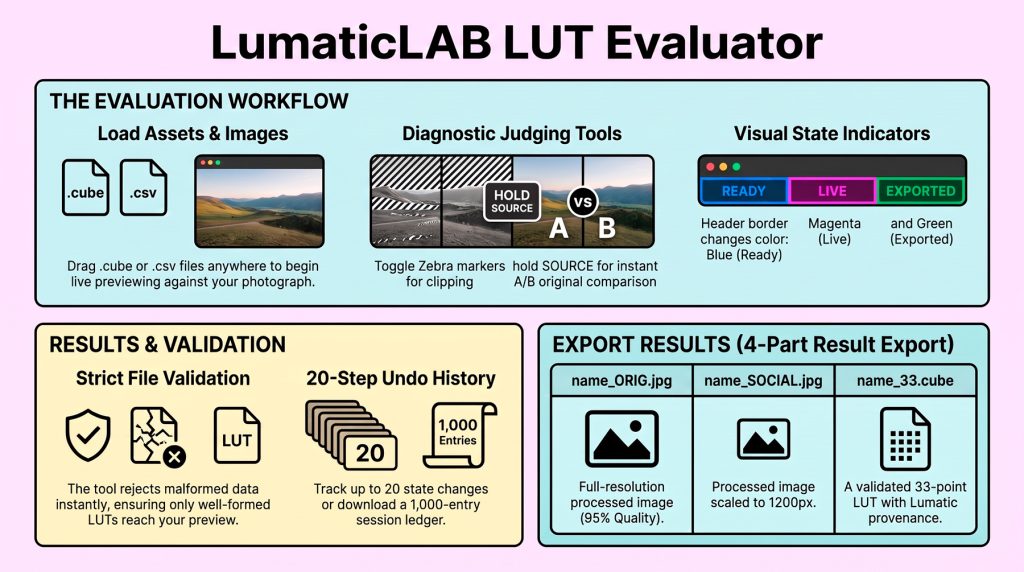
Users can upload their own photographs or utilize a built-in test pattern to visually assess colour transformations before committing to a final editing workflow. The application features diagnostic utilities such as zebra markers for highlight clipping and a source-comparison mode for instant A/B testing. Detailed technical feedback is provided through a pulsing status bar, while a session ledger tracks up to 1,000 state changes for audit purposes. Upon completion, the tool exports a four-part result bundle containing the processed image at multiple resolutions and a validated 33-point LUT file.
Committing to color transforms without validation is a technical gamble that disrupts professional pipelines. LUT Evaluator provides the instant, offline environment needed to verify looks before they reach your timeline.
Core Capabilities: Precision at a Glance
- Universal Offline Access: A single, no-install HTML file that bypasses IT restrictions and runs entirely offline in any modern browser.
- Diagnostic Precision: Features toggleable Zebra markers (magenta for highlights; lime green for shadows) and “Source” hold-to-compare functionality for instant A/B testing.
- The 4-Part Export: Automatically generates three JPEGs (Full-size, 1200px, 200px) and a validated 33-point .cube LUT carrying a Lumatic provenance stamp.
Workflow Overview
1. Launch the Application Select THIS LUT_EVALUATOR link in a supported web browser like Chrome, Edge, Firefox, or Safari. The tool runs entirely offline, meaning no internet connection is required.
2. Load Your Image When opened, the tool displays a standard built-in test pattern by default. To replace this with your own photograph, you can click LOAD IMAGE, use the LOAD [L] toolbar button, or simply drag and drop your JPEG, PNG, or WebP file directly into the browser window. The viewport will immediately rebuild to display your photo.
3. Import Your LUTs Drag and drop your .cube LUT files (or Lumatic .csv palettes) anywhere in the window, onto the dashed drop zone, or click LOAD ASSETS. These files will populate the asset list panel.
4. Apply and Preview Click the checkbox next to any LUT in the asset stack to preview it. Only one LUT can be active at a time; selecting a new one will uncheck the others, and unchecking the active item will return your viewport to the unprocessed image.
5. Evaluate with Diagnostic Tools Once your LUT is applied to your image, you can use the evaluator’s built-in tools to assess the colour transformation accurately:
- Instant A/B Comparisons: Press and hold the SOURCE button to view your original, unprocessed image. Releasing it snaps back to the graded preview, giving you an immediate before-and-after perspective.
- Identify Clipping: Toggle the ZEBRA tool to mark problematic exposure areas. The tool will overlay magenta on blown highlights (pixels with any channel above 252) and lime green on crushed shadows (pixels with all channels below 3), helping you ensure the LUT isn’t destroying image detail.
- Adjust the Viewing Environment: Use the black, grey, and white swatches in the top header to change the background colour of the viewport. While middle grey is the default neutral judging surface, judging against a black background can exaggerate perceived brightness (useful for dark-key work), and judging against white can exaggerate perceived density (useful for high-key or print-bound work).
If you are satisfied with the look, you can enter a custom filename in the Save Result panel and click SAVE 4-PART RESULT [E] to export your processed image at three different resolutions, for archival or immediate social-media use and a validated 33-point .cube LUT file.