
Supporting educational development
Lumatic Knowledge Library v2.0 is an offline-friendly workspace designed to help you collect, organize, and find your useful information in one place. Whether you are saving AI prompts, step-by-step guides, or reference notes, everything stays neatly organized and searchable. It is a further development of our Prompt Manager though the ‘ getting started’ diagram is still essentially applicable.
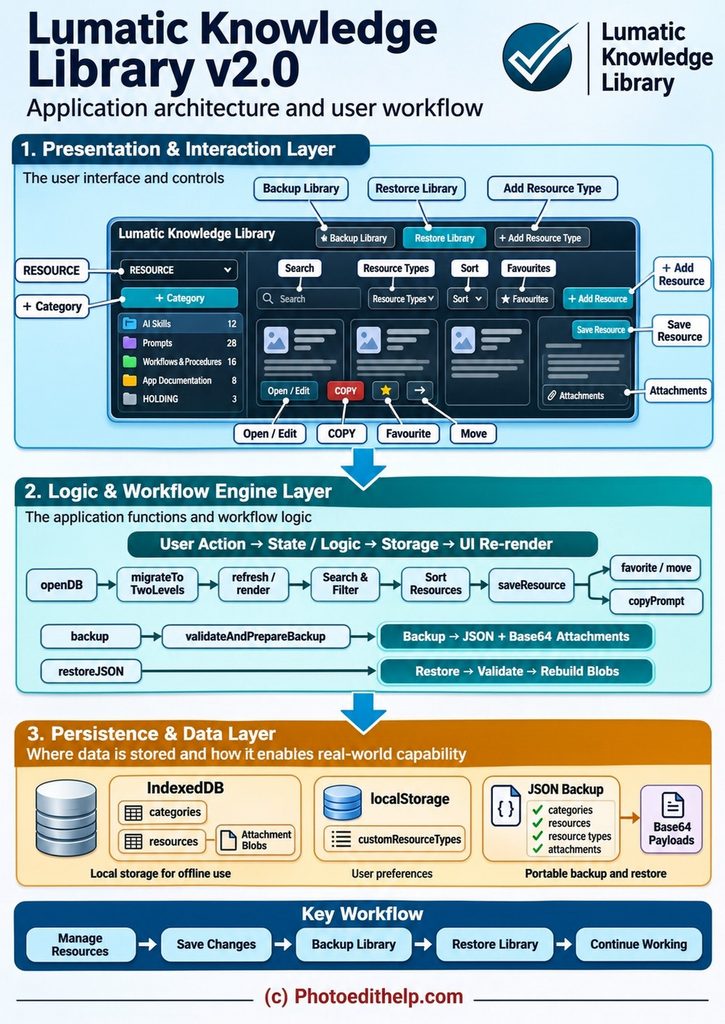
A full sized version of this to print is available here. and complete documentation here.
Private, Secure, Offline Access
Your categories, notes, and custom templates are saved directly inside your web browser rather than on an external cloud server. Because your information lives right on your device, you can access and use your library anytime – even without an internet connection. BUT most importantly – Your data is YOUR data – no logins, paywalls, 3rd parties etc you can be CONFIDENT that your data is SECURE.
Important note: Because your data is tied to the specific browser and device you are using, clearing your browser data could erase your work. Creating regular backups is essential.
Easy Organization & Built-In Safety Nets
- Categories & Subcategories: Start by creating broad main categories to group your topics. You can rename, reorder, and color-code them to match your workflow, then add subcategories for more detailed sorting.
- The “Holding” Safety Net: Lumatic includes a permanent Holding folder that cannot be deleted. Any new items you haven’t sorted yet go here automatically. If you ever delete a main category, your saved items are safely moved to Holding instead of being lost. Similarly, deleting a subcategory simply moves its items up to the main category.
- Complete documentation here.
Flexible Templates for Every Need
You can choose from four built-in templates to keep your information structured:
- Prompt: Save an AI prompt along with its goal and any fill-in-the-blank variables, complete with one-click copying.
- AI Skill: Document what an AI tool or workflow does, what information it needs, its instructions, and its expected output.
- Procedure: Build clear, step-by-step checklists that include the goal, what you need before starting, numbered steps, and the final result.
- Documentation: Keep general reference notes with a summary, version number, and main text.
- Custom Types: If your information doesn’t fit the built-in templates, you can create your own custom resource types using a simple description-and-text editor.
- Copy and play : All you need do is use the red button ‘COPY’ and paste the contents into your ‘AI’, we recommend Chat-GPT. IF you are creating an image, don’t forget to set your AI to ‘Create Image’ – see this page if you have forgotten how.
Finding & Managing Your Work
- Smart Search & Filters: Quickly locate what you need by searching titles, text, and category names. You can also narrow down your view by filtering by template type, sorting your list, or viewing your favorites. One click on Clear filters brings your entire library back into view.
- Quick Actions: Easily open and edit any entry, copy saved prompts to your clipboard, or move items between categories as your library grows.
- File Attachments: Attach supporting files – like PDFs, images, or examples – directly to your entries so everything stays together.
Simple Backup & Restore
Because your library lives in your browser, Lumatic Library makes it easy to protect your work:
- All-in-One Backups: Exporting a backup saves your entire library – including categories, custom templates, and the actual files you attached – into a single downloadable file. Store this file somewhere safe, and save a fresh copy whenever you make major updates.
- Safe Restoring: When you restore from a backup file, Lumatic checks the file to ensure everything is intact and asks you to confirm before proceeding. Keep in mind that restoring will completely replace your current library rather than merge with it, so double-check that you have selected the right file first.
PRINCIPAL TAKEAWAY
Organise resources clearly, then make regular complete JSON backups to protect the entire library.